InsertingVideo 📼 and Finding Files 🔎 and Archiving 📙
Add a touch of class to your videos in Slides...
Long gone are the days of messing around with copying links and struggling to embed videos into a slide deck.
 |
| Start typing key words, paste in the URL if known or search your videos in Drive |
Slides offers you the perfect solution with it's updated
INSERT>VIDEO option that allows you to add a video directly from Youtube by
search,
URL or from your Google
Drive.
That's a
HUGE time saver in itself but how about
upping the ante?
By inserting an image of a TV or cinema screen on to your slide, you can insert, overlay the video and resize to fit the TV screen. Then select
Video Options to choose
auto-play or
mute audio options.
 |
| Size the inserted video accordingly and choose auto-play on the right or mute audio. You can even choose a start/end point. |
Check out this example Slide deck with inserted video on cinema screen and give it a go for yourself!
I recently used this with some Year 7 students who were putting together revision slides for Spanish. They loved the idea and alongside the chosen images of things like numbers and time they added videos that auto-played as they read the words, allowing them to match spelling to sound. They said it was
"much better than just going through old stuff".
Praise indeed for this great feature!!
Finding files in Drive - HELP ME! they cry.
As colleagues and friends are using G Suite more and more they are finding their Drives becoming busier and busier. In many cases, they spend time opening folders and documents hoping to find what they're looking for because they aren't using the full power of the search facility. Check out this video to explore the advance search options you might not be aware of. We've all been there but this might change the way you organise your drive from now on.
Click here to watch the video
And finally...
Are you still archiving old versions of documents into a 2017 archive folder and creating new ones called "New" or "Current" or "2018 version"?
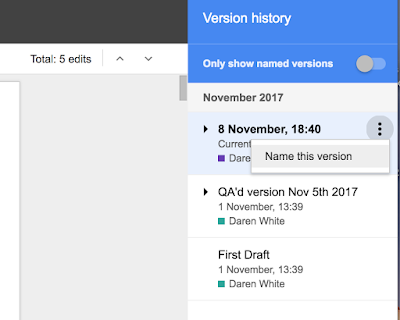
A lot of people are, but there really is no need to be doing this when all you need do is name the
version in
Version History.
By choosing to
name your versions appropriately you can easily revert to a previous set up, review a previous version and maintain any comments or suggestions in one place, rather than having several copies of a similar document clogging up folders unnecessarily.
Personally, I'd suggest a version naming protocol but this may be different depending on the needs/purpose of the document.
This is equally useful for keeping track of the writing process from first draft to final piece. Remember, wherever you see the traffic lights (3 grey dots) there's a feature waiting to be discovered!


 This is one for those of us with lots of extensions on our toolbars.


