Showing posts with label slides. Show all posts

Monday, 4 March 2019

G Gems 31: Just a quickie

It's been quite a while since I've had time to sit down and write a blog. There's been a lot going on in my real world of work and family so it's been hard to take the time to do anything lengthier than a quick twitter or Facebook post.

GMAIL updated

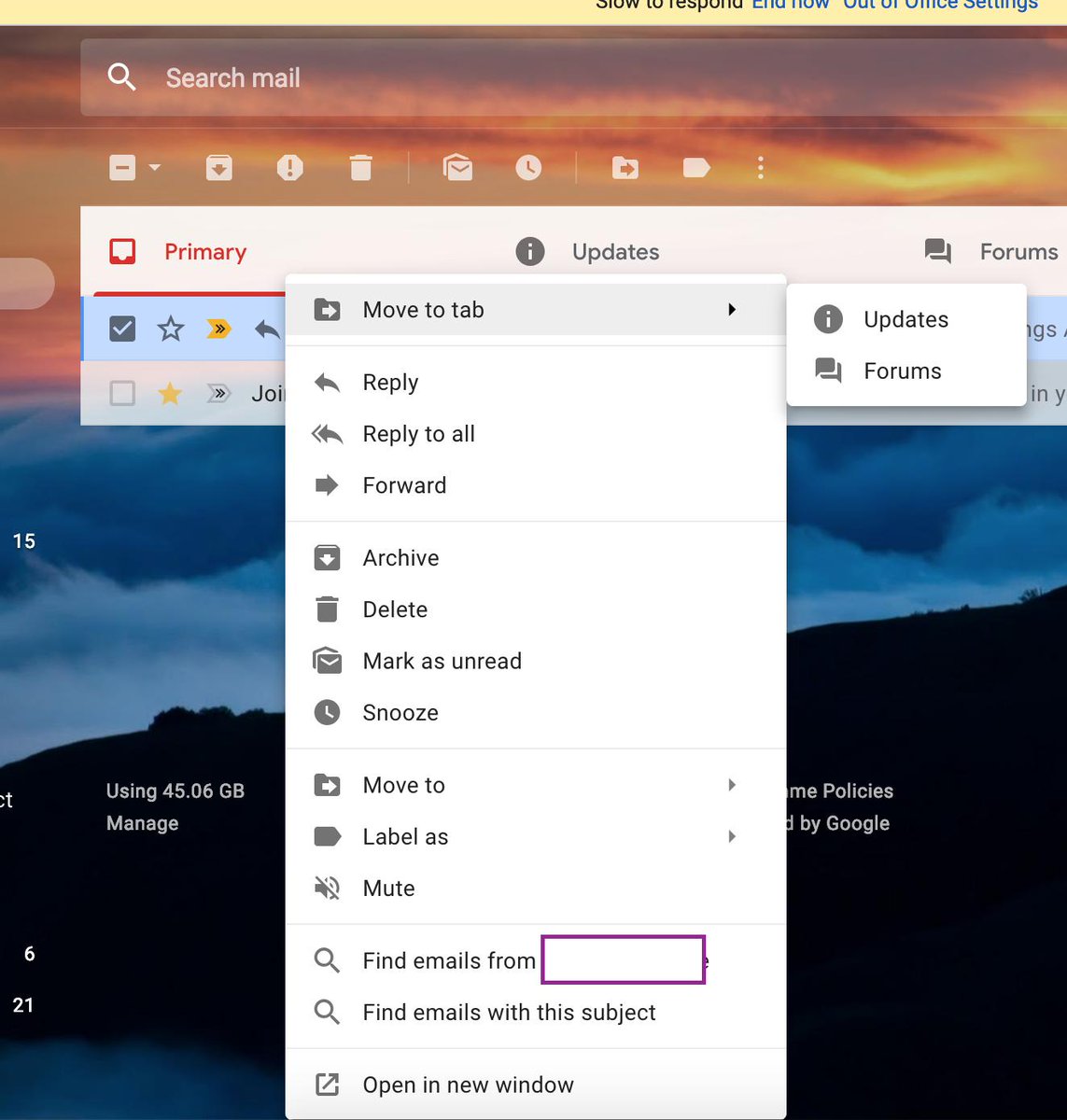
ImageOverall I'm liking the new update to gmail app but the very white interface has certainly divided opinions. One thing I really like now is the right click option on an email that allows you to use the "find emails from" and "find emails with this subject" feature.


This has already proved very useful and has sped up my workflow.


Embed videos into Google Drawings

If you want to embed videos into Google Drawings, here's how to do that in this much under utilised tool by using google slides first.


Google Sheets for Education Support Staff
As I work very closely with a team of educational support staff, I'm always on the lookout for ways to make their lives easier in G Suite.  I've put together a Youtube playlist of google sheet videos and gifs that my team have found useful which you can view here: Google Sheets Playlist

The list includes topics like using sparklines, combining data from 2 cells into 1, conditional formatting based on contents of other cells and more...

If you or your school is interested in some bootcamp style training specific for Educational Support Staff, why not contact @Appsevents1 and see what can be arranged? 

If you are a member of Educational Support Staff, join my Facebook group too or follow the hashtag #googleESS for updates, tips and tricks. 

Thanks for reading, stay tuned for more.


Tuesday, 23 October 2018

G Gems 29: Half-term tricks and treats πŸŽƒπŸŽƒπŸŽƒ

Half-term tricks and treats πŸŽƒπŸŽƒπŸŽƒ

It's been a crazy half-term with back to back Open Evenings, parent consultations, running an ESS Bootcamp in Aberdeen with Appsevents and leading lots of staff CPD as we've started to roll out Lenovo E500 Flip Chromebooks to staff at my schools. 

I've got to say I love mine, it light, works as a tablet, has a garaged stylus that is very responsive and the key thing for me, I charge it every 3 days, not every 30 minutes like I did with my old laptop.

The ability to use apps like Squidnotes and Jamboard on my chromebook has been a godsend for me as a MFL specialist, eliminating the clunkiness of adding special characters when writing on screen. Now I just get on with it which keeps the pace high but also, I believe, develops students' comprehension skills as they have to read handwriting rather than typed fonts. 

As colleagues have come to me with questions, it's been great fun trying to find resolutions to issues and it's a work in progress at this stage.  We're still looking at the best way to use Smart Notebook on our chromebooks as many staff, especially in maths and science, have a large bank of lessons they want to keep using. 

Here are just a few tricks, treats and new features that I'm loving at the moment:

Tabcloud is a great little extension that enables you to build specific tab set up for different purposes.  I use it to create a tab cloud for each class. Each 'cloud' is customisable and when opened, will bring up all the tabs you're going to need at once in a new window. As you will see from the screenshot you can preload any number of sites including classrooms, drive, website etc. 


Keep Awake extension is a great extension for chromebooks when using in class or for presenting.  It does what it says on the tin, preventing your chromebook from going to sleep when in 🌞mode and allowing sleep in πŸŒ”mode. Get the extension here

Jamboard has come to web as well as devices now and the two make a great team. Projecting from a desktop on screen in class and then roaming the room with the Jamboard app on my chromebook, I can allow students to contribute and control what's on screen.  Great for redrafting, peer assessment and organisational thinking. Jamboard has some amazing features. 

Check out my video intro
 to Jamboard here 


CC - Closed Captions in Slides
is another terrific addition to Google Slides, enabling presenters to speak and have subtitles display almost immediately. Ok, so it's not 100% perfect yet but if you speak clearly it's pretty darn accurate. Great for presenting to groups who may have hearing difficulties and also for video recordings using Screencastify. This enable you to limit your slides to minimal information (as we all should) and then talk through the key points. 

Just go to present and click the CC button in the control bar that appears at the bottom.

Mentimeter.com is another great tool for gathering quick information. Post a poll or question, display a code and get your audience to vote from their devices.  You and they will see results appear in real time. Here's an example of what your audience would see. 


Tuesday, 8 May 2018

G Gems 24: Sliding into your inbox - more awesome updates for Slides

Insert slides into docs
Did you know you can now insert a slide deck into a google doc? Well you can, great for programmes, staff handbooks etc as you can select a slide to insert and choose whether it remains linked to the presentation or not. Not only is this handy, it's also a lot more visually appealing than an ugly hyperlink.


Rulers and guides in slides 
add as many guides as you like in 'view'
I've been waiting for this for what seems like an age but it's finally here. Just go to view in the menu and select ruler or guides to get those all important measurements and guidelines that help line everything up beautifully. You can add any number of guides and move them around to suit your needs too. 


Check mark now in slides
I'm a huge fan of checkmark, especially since it became customisable, allowing you to create your own categories, (I turned mine into target language for MFL in docs), but hearing it's now available in slides too is very welcome news and another great step in reducing teacher marking workload. Having tried it out, it seems it might still be a bit 'buggy' as it will insert a comment box but not automate the comment currently (unless that's just me).

Group shapes in Slides 
If you use Slides to create images, flowcharts or diagrams, the ability to group all objects together as one is a life saver. Watch a quick how to below:


Tuesday, 20 March 2018

G Suite Gems 21: Spring at last?


We've hopefully seen the last of any Beasts from the East, but as the new shoots of Spring begin to show, now's a great time to change your way of thinking and doing.

Slow it down with Youtube

click here to watch the video
For MFL teachers, YouTube can provide us with a wealth of 
authentic materials including news videos, films and TV shows such as the legendary telenovelas. 

Use the settings > speed controls on any video to slow down the speed of speech and help your students manage their listening. This allows for complete differentiation as each student can play at the speed of their choice. 


New Google Sites - add your custom favicon
New google sites now gives you the option to upload your own favicon to sit it bookmark bars. 


It's easy to do, in edit mode, just click on the 3 dots (traffic lights) and select add/edit favicon and away you go. 


Are you GDPR ready?  
with May 25 fast approaching, I'm sure many of us are busy ensuring our systems and processes will be compliant with the new regulations.

These new regulations, the first in 20 years, will help us safeguard our personal data and that of others. In many cases, some changes to working practices will be needed which may either be greeted with excitement or worry.

Here are some of my tips for helping staff and students prepare not just for GDPR, but also for life in the cloud moving forward:

DO operate a clear desk policy
DO share documents wherever possible via Google Drive
DO store documents wherever possible on Google Drive
DO ensure that permissions are correctly set on any documents stored and shared via Google Drive.
DO ensure that all devices are password protected, and where applicable use 2-step authentication
DO log out of your computer/laptop/device every time you leave it unattended
DO ensure that all hard copies of personal data are stored securely, double locked and accessed only by authorised individuals and subsequently destroyed correctly.

DO NOT use USBs/Pen drives to transfer personal or sensitive data.
DO NOT download/store data on desktops or personal devices or remove it from the premises.
DO NOT download files and documents from unverified or untrusted sources.
DO NOT post personal or sensitive data in work spaces
DO NOT print personal or sensitive data when you can share via Google Drive

DO NOT save passwords - select NEVER if prompted.

The ICO also has a variety of resources available to act a reminders for people about correct practice. The key moving forward is to build data protection by design into your planning, prior to establishing any new process.

And finally...
a reminder that we don't have to be design experts - use the Explore function to create engaging slide designs in Slides without any fuss.

Watch here to find out how


Saturday, 17 March 2018

G Suite Gems 20: getting better and better


In a week where I've seen people yet again encouraging people to move away from Google because of "security" alongside the standard "I've been trying for ages but I just can't get on with google" my sense of humour has had a real test! 

Dispel the myths and read for yourself here Google For Education and GDPR and here Privacy & Security 

So with that cleared up, let's embrace the world of G Suite and see what's new:

Slides - users with portable IOS devices will now find they have a draw option when presenting a slide deck on screen. This means you (or your students) can now write directly on a slide to annotate, comment or highlight key areas. This could be a real game changer for many in the classroom, especially maths, science and MFL teachers where you can now free write symbols, equations and special characters without needing to insert. 

New Google Sites - a welcome update: users of new google sites can now upload their own favicon (that's the little guy who appears in a browser tab or in your bookmark bar). This can help your site visitors more easily recognise your site, and help you build your brand.

Upload a favicon 

Google Docs Menu update - one of the things I love about G Suite is how things are constantly changing and that's down to the feedback submitted AND the fact that Google actually listen to it. 

I'm loving the update to Docs menu that has separated out text and highlight into their own boxes. I've lost count of the number of times I've highlighted when I meant to change font colour or vice versa but no more! 

Google Drive searching - searching in Drive is so simple but I know many people still spend ages scrolling through trying to find a file rather than heading straight to it. The update to drive to allow you to see the 4 most recent files as Quick Access was an excellent addition and now comes another: 


The “Shared with Me” section shows the files that have been shared with you by another owner (searching by owner is a great way to find docs by the way) but the lovely people at Google are going to start organising this section for you so you may also see people listed, along with files they’ve shared with you. Simply click on a document to quickly open it. 

Check out google's blogspot here
And finally... it's now less that a week to the @Appsevents Google Summit in Wembley. I'll be heading along for day 3 and looking forward to catching up with friends but I'm also really pleased to see support staff bootcamps running on the Friday. In my opinion, a school's support staff are key to getting the whole organisation to embrace collaboration through GforE. When these unsung heroes understand how they can work more efficiently within their own teams and beyond,  and champion this, the rest of the staff will have to get on board. 

If you're a member of school support staff, get along to one of these bootcamps and save yourselves a whole heap of work in the long run.


Wednesday, 28 February 2018

G Suite Gems 18: Don't Do It Yourself (with videos)

Don't Do It Yourself!

1. Explore for great slide design
 If you don't like the designs offered to you as standard in Slides, use the Explore option to create some more for you


2. Creating easy organisational charts in Google Sheets 

Avoid spending ages fiddling around with layouts and updating when staff or structures change.


3. Add an automatic table of contents in Google Docs
It's like actual magic!


 4. Fake sites for evaluating with students
Check out these great AND CURRENT sites for teaching students about evaluating web sources - originally shared by Eric Curts   Fake sites - hours saved searching for or even creating suitable resources. I particularly like this one, sounds very dangerous!


5. Make the students think
I love this kind of approach to thinking and they make great starters or points for discussion around learning. Here's an example, I can't remember where I came across this but show this to your students and see what THEY can tell YOU about what it is telling us. Enjoy!
what patterns can you see? It's a great way to represent familiar material in unfamiliar ways to boost independent thinking.


I've recently set up a Youtube Channel. 
I'm always open to feedback and suggestions so please feel free to drop me a message.

Monday, 12 February 2018

G Suite Gems 15: whatever happened to the language lab?

Whatever happened to the language lab?

As a language teacher (amongst other things), I often hark back to when I was at 6th form, studying French, German and Spanish, using what seemed like incredible technology.

For those who don't have the luxury of remembering that far back, there we'd all sit, around 25 of us in a language lab with our individual booths and headphones. The teacher had readied a recording for us to listen to and around came a worksheet of questions.

Image result for 90s language lab
Language listening in the 90s
The teacher had overall control of the cassette decks (yes cassette decks) and could stop us to talk to us at any point but we as students had control of how many times we heard the recording, we could pause for thought and rewind to listen to certain points without affecting our classmates at all. 

Total autonomy and differentiation way back in the 90s.

I found this an effective and engaging way of developing my language listening skills and this continued at university. 

However, when I came into teaching in secondary schools in the late 90s, very few schools had the luxury of a purpose built language lab with all this technology. Most schools had portable cassette players that the teacher carried to class and then had to fumble around finding the right place on the tape (as they were normally shared across the department). 

The very lucky departments may have had several of these and headphones to plug in to the 6 headphone jacks. In this way groups of students could listen to different material BUT those 6 still had to listen at the same speed as the rest of their group. Not ideal!

Then something dawned on me a few weeks ago and I can believe it took that long really....
Could we recreate a similar language lab environment using edtech and G Suite for Education?

Here's my suggestion. It's not perfect by any means but it's food for thought certainly!

Click here for a demo

By using Google Slides as a base, uploading target language Youtube videos, creating questions in Google Slides or Forms and sharing to classroom you could recreate this kind of language lab experience with complete autonomy for the individual student. 

I'd be keen to know what others have done. Get in touch. 


Monday, 22 January 2018

G Suite Gems 11: Change your way of thinking

Change your way of thinking: 
Using Slides where you might once have used Word or Publisher 

Explore the potential of Slides
When you've worked in a particular way for a substantial amount of time it can be easy to get stuck in a fixed mindset and way of working. When I first started using G Suite my first summary was  pretty much "Docs is Word, Sheets is Excel and Slides is Powerpoint but you can share and you don't have to save".

In the most part people took that on board and because everyone is always busy, not everyone had time to explore new or different features. So for a couple of years people, myself included, bemoaned the issues of bringing a previous 'handbook' or 'guide' created in Word across to Drive, opening as a Google Doc and then finding the formatting messed up. For some, it was too frustrating and they reverted back to the familiar Word format, others persevered making the necessary readjustments and a few explored other options. It was here that the breakthrough came.

No-one had ever envisaged making a booklet using Slides, possibly because they thought page set up was only available in landscape. Well, with custom page set ups, anything is possible. Not only can you easily position titles, text boxes and images but you can very easily add video with the updated Insert functions of Slides. Add to that the ability to link slides together you can easily create a document that can be easily navigated online. 


We all know that teaching methods in maths have changed a lot over the years and as a parent myself, sometimes I struggled to know the best way to help my daughter. 

Here's an example of a document I put together for my school with the help of resources from the excellent corbettmaths.com to help parents/carers support their child's learning/homework in maths.

Supporting your child in mathematics - take a look at this video based resource.

We're also now working on the use of Slides for a Student's Guide to the Academy for our new intake in September 2018.

The other advantage is of course that a document created in Slides can be published to the web and placed on your website with auto-play and auto-advance settings to play as a scrolling video.

Oh and why not use Google Drawings to create adverts, posters and logos?

It's far more accessible than you might think! 


Tuesday, 16 January 2018

G Suite Gems 10: Slides, Video, Finding Files and Archiving

InsertingVideo πŸ“Ό and Finding Files πŸ”Ž and Archiving πŸ“™

Add a touch of class to your videos in Slides...
Long gone are the days of messing around with copying links and struggling to embed videos into a slide deck.


Start typing key words, paste in the URL if known or search your videos in Drive
Slides offers you the perfect solution with it's updated INSERT>VIDEO option that allows you to add a video directly from Youtube by search, URL or from your Google Drive.

That's a HUGE time saver in itself but how about upping the ante?

By inserting an image of a TV or cinema screen on to your slide, you can insert, overlay the video and resize to fit the TV screen. Then select Video Options to choose auto-play or mute audio options.

Size the inserted video accordingly and choose auto-play on the right or mute audio. You can even choose a start/end point.
Check out this example Slide deck with inserted video on cinema screen   and give it a go for yourself! 

I recently used this with some Year 7 students who were putting together revision slides for Spanish. They loved the idea and alongside the chosen images of things like numbers and time they added videos that auto-played as they read the words, allowing them to match spelling to sound. They said it was "much better than just going through old stuff". Praise indeed for this great feature!!

Finding files in Drive - HELP ME! they cry.
As colleagues and friends are using G Suite more and more they are finding their Drives becoming busier and busier. In many cases, they spend time opening folders and documents hoping to find what they're looking for because they aren't using the full power of the search facility. Check out this video to explore the advance search options you might not be aware of. We've all been there but this might change the way you organise your drive from now on.


Click here to watch the video


And finally...

Are you still archiving old versions of documents into a 2017 archive folder and creating new ones called "New" or "Current" or "2018 version"?


A lot of people are, but there really is no need to be doing this when all you need do is name the
version in Version History.

By choosing to name your versions appropriately you can easily revert to a previous set up, review a previous version and maintain any comments or suggestions in one place, rather than having several copies of a similar document clogging up folders unnecessarily.  Personally, I'd suggest a version naming protocol but this may be different depending on the needs/purpose of the document. 

This is equally useful for keeping track of the writing process from first draft to final piece. Remember, wherever you see the traffic lights (3 grey dots) there's a feature waiting to be discovered!

Sunday, 3 December 2017

G Suite Gems 4


Want to create new docs really quickly? 

I came across this handy tip in one of the G+ communities posted by @JakeMillerTech.

I'm constantly creating new docs, sheets and slides from scratch for quick use in the classroom and beyond and I've now installed these handy bookmarks on my toolbar ⬇ things have got a lot quicker.


Just go to your bookmarks manager, select add page and enter the following:

For a new Google Doc: docs.google.com/create
For a new Google Slide: slides.google.com/create
For a new Google Sheet: sheets.google.com/create

Then all you have to do is one simple click to open a new blank document at any time. Simple!

Autocrat Update

Did you know that Autocrat now works with Slides?

Well it does now, meaning you can now set your responses in Google Sheets to merge into a Google Slide template of your choice. A great way to quickly populate certificates for students or colleagues upon completion of tasks, courses or as recognition rewards. 
When it comes to selecting the output format in Step 4, Slides will only allow the single document mode rather than multiple documents (classic mode) but you soon get quick and easy PDF certificates all in one place.


Tuesday, 28 November 2017

G Suite Gems 2


Frustrated by the inability to insert audio in Google Slides? Not any more!

audioforslides   

Yes, the wonderful team at @EdTechteam have released this great and much welcome tool to allow you to insert audio files into Slides direct from your Drive.

Watch their demo here πŸ‘ . 

Google Classroom  


I've long wanted to be able to see all of a student's work in one place in classroom
AND NOW I CAN!  Thank you ditchthattextbook.com for bringing this to my attention ⬇⬇⬇

  • In the Students tab, click a student’s name to see all of his/her assignments,questions and quizzes — as well as status of work, grades, attached files and an icon for private comments. 
  • Click here for full instructions
QUIZIZZ 

quizizz.com is very similar to the popular kahoot game but progress can be time limited and is not dependent on other students. Sign up for free and link your quizzes or any from the library direct to your Google Classrooms. 

Wednesday, 15 November 2017

G Suite Gems 1


My first blogpost in years, my previous ones were all about cycling.

It's been a busy week for me, both in and beyond the classroom but I've taken great pleasure from being able to share my experience with G Suite and Social Media with colleagues from other schools as well as a local Chamber of Commerce who wanted an deeper insight into what G Suite has to offer.

Having conducted 2 face to face meetings, one video call and a 3 hour training session I can't believe it's only Wednesday night. (Almost time for The Apprentice)

I've been exploring further options this week, trying to find apps, extensions and options that will save colleagues time and effort, maybe even money! Below are some of the things I've shared with others who didn't know about them. That's the point isn't it, if you don't know, you don't know you don't know!

1. Sparkline in Sheets 

What a great little formula for showing a trend line graph! One colleague nearly fell off her chair when she saw this and how easy it was to create - just click in a cell, enter =sparkline and then choose the range. It's as easy as that and boom, you get a mini graph for each row of data. Copy down for individual graphs for a whole group.

2. Quill.org

Another free tool that could be especially useful for English teachers and especially those working with young people who need help with sentence structure etc. There's a free trial activity on the homepage and the subsequent analytics are very easy to work with. Why not give it a try?

3.  the new INSERT IMAGE option

I'm loving the drop down in Slides which has made things so much quicker. Simply choose now between upload from my computer, search the web, Drive, Google photos etc and drop the pictures straight in to your document. Great!