Showing posts with label sheets. Show all posts

Sunday, 13 October 2019

G Gems 34: user accountability & tracking in G Suite

Google for Education's G Suite offers a wealth of tools for tracking purposes.

Whether that be tracking user access and trends, collaborators' input, document updates or as an audit trail for email conversations.

Here's a summary of some of the tools I and my colleagues use regularly both in the classroom and in the office.

Activity Dashboard
The activity dashboard for Google documents, available by clicking the sparkling icon (top right) 


gives document owners full access to see who has viewed the document, who has been shared the document as well as a trend timeline of when it was accessed.
This proves very useful when sharing documents with a number of users to contribute and update as you can easily see who has been working on the document and who hasn't at a glance.


Version history
This feature is often overlooked by new users to G Suite. You can access via the file menu or by clicking the hyperlink at the top centre of the toolbar that usually reads something like "all changes saved to drive" or "last edit made X minutes ago by ......"
The side bar will open up giving you the various autosaved versions of the document from its very beginning, including which users have made changes (using a handy colour code).

All versions can be renamed (I often rename version 1 "original") and also copied at any time.
Any previous version can also be restored with a single click if changes are rejected.


Cell history
This great new feature works like version history but for each specific cell within Google Sheets.
Using this feature you can exactly which user has updated a cell and the timestamp. Where a cell has been edited multiple times a full history is visible by edit, user and timestamp.


Comment history
Within Google docs, once a comment has been resolved, it flies away. However, click on the comment icon (top right) and the full comment history can be brought back at any time.
Perfect for demonstrating an ongoing dialogue on the progress or changes within any document.


Gmail delegated access - allows access to send on behalf of a service account/team account within your domain (but shows who you're dealing with)
To set up delegated access for another user, from the main account go to settings > accounts and invite specific users.


Those users will then get an alert asking them to verify their account. It can take about 30 minutes for the change to take effect but soon they'll be able to select the delegated account in the drop down.


------
If delegated access to Gmail accounts isn't for you or your organisation you could consider setting up a Google Group as a collaborative inbox.


Collaborative inboxes allow members of the google group to send and share across the group with all messages arriving via Gmail ( I use the forum option in my Gmail settings).


Monday, 4 March 2019

G Gems 31: Just a quickie

It's been quite a while since I've had time to sit down and write a blog. There's been a lot going on in my real world of work and family so it's been hard to take the time to do anything lengthier than a quick twitter or Facebook post.

GMAIL updated

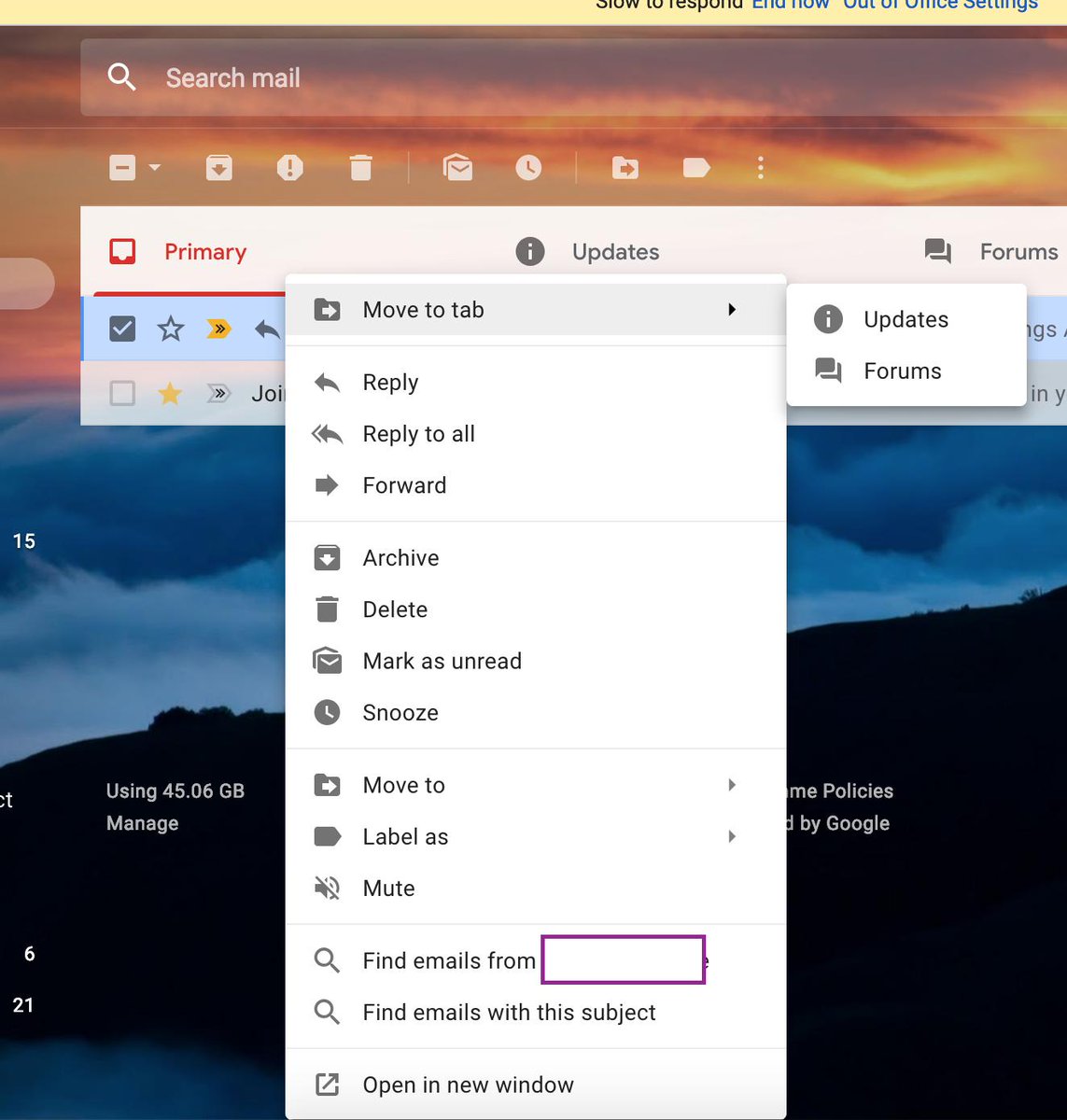
ImageOverall I'm liking the new update to gmail app but the very white interface has certainly divided opinions. One thing I really like now is the right click option on an email that allows you to use the "find emails from" and "find emails with this subject" feature.


This has already proved very useful and has sped up my workflow.


Embed videos into Google Drawings

If you want to embed videos into Google Drawings, here's how to do that in this much under utilised tool by using google slides first.


Google Sheets for Education Support Staff
As I work very closely with a team of educational support staff, I'm always on the lookout for ways to make their lives easier in G Suite.  I've put together a Youtube playlist of google sheet videos and gifs that my team have found useful which you can view here: Google Sheets Playlist

The list includes topics like using sparklines, combining data from 2 cells into 1, conditional formatting based on contents of other cells and more...

If you or your school is interested in some bootcamp style training specific for Educational Support Staff, why not contact @Appsevents1 and see what can be arranged? 

If you are a member of Educational Support Staff, join my Facebook group too or follow the hashtag #googleESS for updates, tips and tricks. 

Thanks for reading, stay tuned for more.


Thursday, 3 May 2018

G Suite Gem 23: Sheets Levels Up!!

Check boxes in sheets
No more fiddling around trying to insert special characters or Ys and Ns


Use the new insert check box function in sheets.


Translate in sheets: 
So I can't believe I've only just found out about this! As a MFL teacher by trade, this is very exciting, not because I want my pupils to rely on google translate, but because it gets them excited about finding out new words!


Open up a sheet, chuck in the formula and watch the magic happen.

Wednesday, 28 February 2018

G Suite Gems 18: Don't Do It Yourself (with videos)

Don't Do It Yourself!

1. Explore for great slide design
 If you don't like the designs offered to you as standard in Slides, use the Explore option to create some more for you


2. Creating easy organisational charts in Google Sheets 

Avoid spending ages fiddling around with layouts and updating when staff or structures change.


3. Add an automatic table of contents in Google Docs
It's like actual magic!


 4. Fake sites for evaluating with students
Check out these great AND CURRENT sites for teaching students about evaluating web sources - originally shared by Eric Curts   Fake sites - hours saved searching for or even creating suitable resources. I particularly like this one, sounds very dangerous!


5. Make the students think
I love this kind of approach to thinking and they make great starters or points for discussion around learning. Here's an example, I can't remember where I came across this but show this to your students and see what THEY can tell YOU about what it is telling us. Enjoy!
what patterns can you see? It's a great way to represent familiar material in unfamiliar ways to boost independent thinking.


I've recently set up a Youtube Channel. 
I'm always open to feedback and suggestions so please feel free to drop me a message.

Monday, 1 January 2018

G Suite Gems 8


Happy New Year 🍾🍾🍾🍾🍾🍾🍾🍾🍾🍾🍾🍾🍾

I don't know about you but I don't hold with this "new year, new me" philosophy, nor do a wait for a specific date to start making changes.

For me, if it's something you want to do, learn or achieve, just GET ON WITH IT.

As we begin 2018 I've found that I've enjoyed writing and sharing this blog and have been pleasantly surprised by the feedback and audience it has attracted. So here's hoping my contributions continue to give people ideas, solutions and make their lives easier - because that's what floats my boat.

With that in mind, to kick off 2018 here are a few things I've come across personally that could have a big impact in the classroom, office or business.

Padlet - a great way to share links with colleagues or students


I'd not come across padlet before but what a great little tool! I think it can be incredibly useful for removing the need for those frustrations like "Where did you find that?" or "What was the link we needed Sir?"

There are loads of public examples which could be used immediately or you can create and customise your won very easily. I've started mine for sharing add-ons/extensions etc with colleagues, it's early days and it will grow rapidly I'm sure - take a look here: G Suite Gem Padlet

Alternatively, here are some educational examples from a padlet user called Lisa that may be of interest School Hyperdocs by Lisa

Use Google Keep to extract text from photos 
Here's a really handy tweet from @GoogleforEdu with video on how you can use your phone camera and Google Keep to extract text from sticky notes etc >  integrate Keep with your camera
Give it a try!

Tab Scissors extension   

Got lots of tabs open and want to split the screens quickly? Try Tab Scissors extension which does it for you at the touch of a button

Timelines in Google Sheets
Easily create timelines for a range of subjects or uses with this great addition from KnightLabs.com 

Timelines have so many uses in so many areas but can appear like a minefield to create digitally if you're not sure where to start - this great addition walks you though it and give some great examples too.  Check out the instructional video here.

Aside from obvious uses in history lessons, try using this with Google sheets in the following areas:

English: Storyline development, character development, biographies, Author publication dates

Science: Discoveries of elements, planets, space exploration dates etc

Geography: Timeline of populations over time, geographical changes over time

PE: rule changes over time, equipment changes, history of major events, world record times

Music: Timeline of musical genres and their influences, biography of musicians

Business/Economics: Global economy & growth, growth of major companies/corporations

Technology: Development of technology over time, development of tools over the years

Here's a great example with a timeline of the life of Whitney Houston 


Enjoy and wishing everyone a fantastic 2018.


Tuesday, 5 December 2017

G Suite Gems 5

https://upload.wikimedia.org/wikipedia/commons/thumb/f/f6/Antu_google-sheets.svg/2000px-Antu_google-sheets.svg.pngGoogle Sheets for Everyone!


You’ve probably thought at some point “I don’t use spreadsheets so there’s nothing there for me” but you could be missing out if you haven’t come across Flippity . It’s a great website that will give you free google sheet templates to create resources in no time at all. Click below for templates that could be used across the entire curriculum such as:

flashcards

quiz shows

memory flipcards

random name or group generators

wordsearches

hangman

crosswords

bingo and much more.


Ready made and adaptable Markbook templates.
Google sheets has a range of markbook templates already available that you can use and adjust. Many give you some great options including group and student level analysis at the touch of a button and you can customise your own grade boundaries to fit with new GCSE grades and mark bands.


And finally…got a spreadsheet full of data?

Did you know you can use the Explore button in Sheets to ask questions about your data?
Press the (bottom right of page) and give it a try!

Sunday, 3 December 2017

G Suite Gems 4


Want to create new docs really quickly? 

I came across this handy tip in one of the G+ communities posted by @JakeMillerTech.

I'm constantly creating new docs, sheets and slides from scratch for quick use in the classroom and beyond and I've now installed these handy bookmarks on my toolbar ⬇ things have got a lot quicker.


Just go to your bookmarks manager, select add page and enter the following:

For a new Google Doc: docs.google.com/create
For a new Google Slide: slides.google.com/create
For a new Google Sheet: sheets.google.com/create

Then all you have to do is one simple click to open a new blank document at any time. Simple!

Autocrat Update

Did you know that Autocrat now works with Slides?

Well it does now, meaning you can now set your responses in Google Sheets to merge into a Google Slide template of your choice. A great way to quickly populate certificates for students or colleagues upon completion of tasks, courses or as recognition rewards. 
When it comes to selecting the output format in Step 4, Slides will only allow the single document mode rather than multiple documents (classic mode) but you soon get quick and easy PDF certificates all in one place.


Wednesday, 15 November 2017

G Suite Gems 1


My first blogpost in years, my previous ones were all about cycling.

It's been a busy week for me, both in and beyond the classroom but I've taken great pleasure from being able to share my experience with G Suite and Social Media with colleagues from other schools as well as a local Chamber of Commerce who wanted an deeper insight into what G Suite has to offer.

Having conducted 2 face to face meetings, one video call and a 3 hour training session I can't believe it's only Wednesday night. (Almost time for The Apprentice)

I've been exploring further options this week, trying to find apps, extensions and options that will save colleagues time and effort, maybe even money! Below are some of the things I've shared with others who didn't know about them. That's the point isn't it, if you don't know, you don't know you don't know!

1. Sparkline in Sheets 

What a great little formula for showing a trend line graph! One colleague nearly fell off her chair when she saw this and how easy it was to create - just click in a cell, enter =sparkline and then choose the range. It's as easy as that and boom, you get a mini graph for each row of data. Copy down for individual graphs for a whole group.

2. Quill.org

Another free tool that could be especially useful for English teachers and especially those working with young people who need help with sentence structure etc. There's a free trial activity on the homepage and the subsequent analytics are very easy to work with. Why not give it a try?

3.  the new INSERT IMAGE option

I'm loving the drop down in Slides which has made things so much quicker. Simply choose now between upload from my computer, search the web, Drive, Google photos etc and drop the pictures straight in to your document. Great!