Showing posts with label drawings. Show all posts

Wednesday, 25 July 2018

G Gems 27: Optional extras 👨‍🏫


Add bitmojis to your docs and emails with the bitmoji chrome extension. It's really simple.  


Personally, I love a bitmoji as it grabs attention quickly and also makes docs more interesting. The range of different images is great once you've customised your own bitmoji and a quick copy and paste will insert your chosen graphic into your docs.  The chrome extension also talks to your gmail and gives you a bitmoji icon in compose for you add an image if you want to.

Add emojis to document names, folder names or bookmarks


Are you often left wondering if you've chosen the right emoji?
Check out https://emojitranslate.com/ where you can enter text and have it translated into an appropriate emoji. Then just copy and paste anywhere you like.  Add it to a document name, folder name or bookmark to customise your files. 

Are you using a team drive?
A colleague recently wanted his department team drive to contain a link to a resource website that was pulling together files from various different places. He wasn't keen on having everyone add the website to their bookmarks as he wanted his team drive to be a "one stop shop" for everything.

We came up with a simple solution using Google Drawings. We created a simple image, included the link as a hyperlink and then save the image as a pdf in the team drive for everyone to access. Now all they have to do is click on the link.

Here's an example that works a bit like your own version of symbaloo: Department weblinks

Wednesday, 24 January 2018

G Suite Gems 12: Super 6

Super 6: 
6 super things I've discovered this week
(don't laugh if you already knew)


Tab Glue

A few weeks back I introduced colleagues to Tab Scissors (from Tir) and the feedback has been great. I've found it particularly helpful when displaying two different student pieces on screen to compare.

This week, I'm sharing Tab Glue with them, just because I wanted to see how many asked if it was possible to glue the cut tabs back together. The answer was many but some found it for themselves which pleases me. If you haven't tried using Tab Scissors or Tab Glue give it a go and sit them side by side in your toolbar.

Black menu for Google (from carlosjeurissen.com)


Wow! I'm loving this addition. Added to your toolbar, this great extension gives you a quick drop down access to your files, apps and searches.

What's more, you can completely control what appears in the drop down bar. Check out the image below for an example


Adblock Plus

Fed up of annoying ads, try Adblock Plus and let it take care of them for you. The handy extension even keeps a tally to show off what a great job it's doing for you.

Get it here .


Document signing using Google Drawings

Are you often asked to electronically sign documents? Did you know you can use Google Drawings to do this in Docs or Sheets?
Example of a document signed using Drawings


Well you can - just watch this short video to find out how.


Did you know you could hover over busts in silhouette on a google drive folder to quickly see who has access?

Try it! 


Setting Alerts 

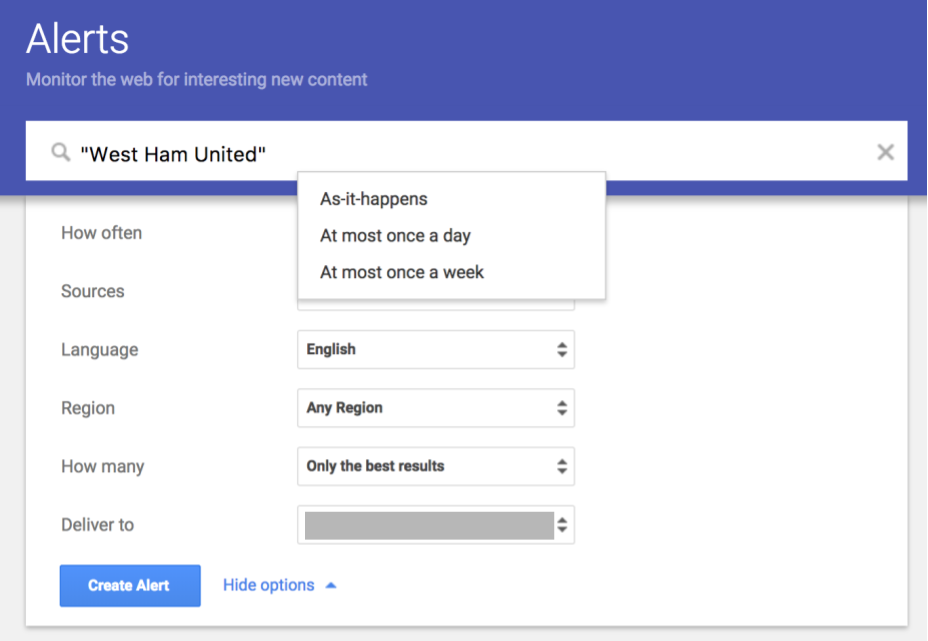
To create a Google Alert for a certain topic, name or event, do the following:

  • Go to the site at www.google.com/alerts
  • Type your search term or phrase in the search box just like you are making a normal Google search.
  • Note: Be sure to put quotes around your search phrase as usual if you want to make sure those words appear in that specific order, such as "West Ham United".
  • Click the "Show options" link if you want to tweak how often you get updates and which sources to search.
  • You will see a preview below showing you representative results.
  • When done, click "Create Alert".     You can edit/remove alerts at any time. 

Monday, 22 January 2018

G Suite Gems 11: Change your way of thinking

Change your way of thinking: 
Using Slides where you might once have used Word or Publisher 

Explore the potential of Slides
When you've worked in a particular way for a substantial amount of time it can be easy to get stuck in a fixed mindset and way of working. When I first started using G Suite my first summary was  pretty much "Docs is Word, Sheets is Excel and Slides is Powerpoint but you can share and you don't have to save".

In the most part people took that on board and because everyone is always busy, not everyone had time to explore new or different features. So for a couple of years people, myself included, bemoaned the issues of bringing a previous 'handbook' or 'guide' created in Word across to Drive, opening as a Google Doc and then finding the formatting messed up. For some, it was too frustrating and they reverted back to the familiar Word format, others persevered making the necessary readjustments and a few explored other options. It was here that the breakthrough came.

No-one had ever envisaged making a booklet using Slides, possibly because they thought page set up was only available in landscape. Well, with custom page set ups, anything is possible. Not only can you easily position titles, text boxes and images but you can very easily add video with the updated Insert functions of Slides. Add to that the ability to link slides together you can easily create a document that can be easily navigated online. 


We all know that teaching methods in maths have changed a lot over the years and as a parent myself, sometimes I struggled to know the best way to help my daughter. 

Here's an example of a document I put together for my school with the help of resources from the excellent corbettmaths.com to help parents/carers support their child's learning/homework in maths.

Supporting your child in mathematics - take a look at this video based resource.

We're also now working on the use of Slides for a Student's Guide to the Academy for our new intake in September 2018.

The other advantage is of course that a document created in Slides can be published to the web and placed on your website with auto-play and auto-advance settings to play as a scrolling video.

Oh and why not use Google Drawings to create adverts, posters and logos?

It's far more accessible than you might think!