Monday, 12 February 2018

G Suite Gems 15: whatever happened to the language lab?

Whatever happened to the language lab?

As a language teacher (amongst other things), I often hark back to when I was at 6th form, studying French, German and Spanish, using what seemed like incredible technology.

For those who don't have the luxury of remembering that far back, there we'd all sit, around 25 of us in a language lab with our individual booths and headphones. The teacher had readied a recording for us to listen to and around came a worksheet of questions.

Image result for 90s language lab
Language listening in the 90s
The teacher had overall control of the cassette decks (yes cassette decks) and could stop us to talk to us at any point but we as students had control of how many times we heard the recording, we could pause for thought and rewind to listen to certain points without affecting our classmates at all. 

Total autonomy and differentiation way back in the 90s.

I found this an effective and engaging way of developing my language listening skills and this continued at university. 

However, when I came into teaching in secondary schools in the late 90s, very few schools had the luxury of a purpose built language lab with all this technology. Most schools had portable cassette players that the teacher carried to class and then had to fumble around finding the right place on the tape (as they were normally shared across the department). 

The very lucky departments may have had several of these and headphones to plug in to the 6 headphone jacks. In this way groups of students could listen to different material BUT those 6 still had to listen at the same speed as the rest of their group. Not ideal!

Then something dawned on me a few weeks ago and I can believe it took that long really....
Could we recreate a similar language lab environment using edtech and G Suite for Education?

Here's my suggestion. It's not perfect by any means but it's food for thought certainly!

Click here for a demo

By using Google Slides as a base, uploading target language Youtube videos, creating questions in Google Slides or Forms and sharing to classroom you could recreate this kind of language lab experience with complete autonomy for the individual student. 

I'd be keen to know what others have done. Get in touch. 


Sunday, 4 February 2018

G Suite Gems 14: 10p Mixbag #tooSuite 🤘


10p Mixbag -  these features are #tooSuite 🤘

1. Say goodbye to PDFs on websites 
Since we moved over to google sites for our school website, it has been the done thing to take policies, turn them into PDFs and then put them in a folder linked to the website with 'public' viewing rights. Easily 8 or 9 steps to get the job done.

As we've grown we've found issues with this such as multiple copies located in different places, especially when we've had to update documents following changes. It can be a real nightmare!

So how do we solve the problem and save time? Easy, we now host all our policies in the same folder but simply make them 'view only'. No need to convert to PDF and 1 step instead of 8. The added advantage is that if we need to update any documents, we simply put them in 'suggestion mode' while we make proposed changes and the outside world can't see any of what's going on behind the scenes until suggestions are accepted and suggestion mode is turned off by the editor.

2. Padlet Update
I've mentioned padlet previously but this post by Holly Clark highlights some new additional features including the ability to include video and also for people to vote now. Really handy! http://www.hollyclark.org/2018/01/31/5-reasons-to-use-padlet-tomorrow/ 

3. Gapminder Eric Curts recently promoted this via is own blog and it's got huge potential for a number of subjects including Social Sciences, Economics and Business.   https://www.gapminder.org/tools allows you to compare statistics between countries across the world at a glance in a visual way. Give it a try! 

4. Optical Character Recognition (OCR) Check out Tech Republic's article on OCR to save time how-to-extract-text-from-a-pdf-or-image-in-google-drive

5. Redraft with Google dictation
Got students or colleagues redrafting documents after feedback. Have you considered getting this done using the dictation tool via the microphone icon? - Just read out the document with the changes and let Google do the work for them. 

6. Cue prompter 
Preparing for presentations or speaking & listening type activities?  Try the classic autocue approach using http://cueprompter.com/ and just press the down arrow to advance.


7. Facebook likes for Pages
Most people running pages are already aware but in case you've missed it, Facebook have made changes to reduce the amount of potential spam you see on your timeline. As a result, followers may miss your posts. To make sure they don't encourage them to click on "following" and select "see first"

8. Canva
On the subject of social media, give Canva a look if that's your thing. Canva allows for FREE, a team of 10 to collaborate online for documents including brochures, newsletters and social media posts.

9. Searching within a folder in Drive from G Suite
GIF 1 ICYMI
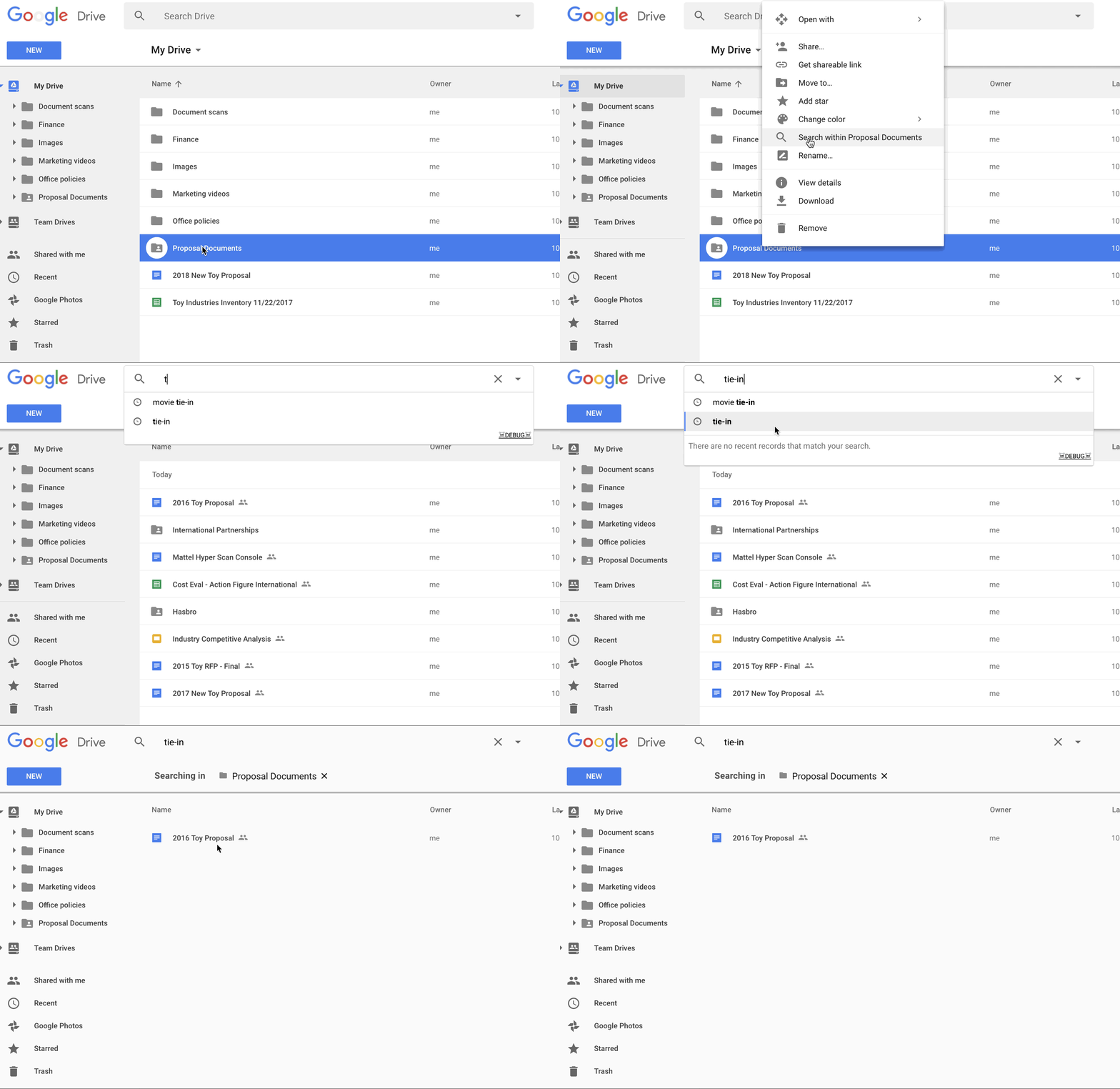
Google have made it easier to search for information within a specific folder in Google Drive. Now you can right click on a folder title in your Drive and select “Search within [title of folder].” Type terms into the search bar and track down your files faster. Here are some more tricks to help you save time searching.


And finally....
This absolute gem from Mr Aaron really made me smile 😃


Tuesday, 30 January 2018

G Suite Gems 13: I can't believe it's not BETTer!

I can't believe it's not BETTer! 

So last Friday I was fortunate, after 3 years of trying, to get the chance to attend the Bett show 2018. To be honest I didn't really know what to expect having only ever visiting Excel once before for the Motor Show.

On arrival, as a newbie, I must admit to feeling a little intimidated and overwhelmed. Aside from getting zapped at the entrance and given a lanyard, very little information was shared so in I walked with trepidation to a maze of stands.

Now don't get me wrong, some of what I saw was great. I really enjoyed listening to a keynote speech by Bram Bout, Director of Google for Education, talking with others about the soft skills employers are looking for these days: problem solving and collaborative skills topping the list. Take note careers advisors and teachers, #curiosity is key!

Dean is a former teacher/Leader of Learning Technologies
 in 2 secondary academies
I had a great time catching with my pal and former colleague Dean Stokes, who is UK Director of the excellent Appsevents.com - I'm always eager to see what Dean and his colleagues Ben Rouse and Oli Trussell have to share and am never surprised to see their stand packed out. When I got there Dean was in the middle of a demo on using Google Classroom and Quizzes alongside Science Journal with a group of around 30 keen-faced individuals. Talking to Dean afterwards, that was their 55th demo of the week (and counting).

No matter how much I think I know, these guys always manage to hit me with something new and nothing is too much trouble. It was through talking to Ben that I came across Squidnotes.com as a note taking app that has tremendous potential for maths and MFL teachers particularly as it could remove the annoyance of inserting special characters and accents.

As I continued round the massive space, weaving in and out of what seemed like endless rows of Interactive Whiteboards and fad robots, it struck me that when you sift through all that, actually, there wasn't much individuality. In fact, some of what was on display seemed almost dated already. This surprised me but perhaps it shouldn't have. Is it just that those of using #Edtech somehow take it for granted and don't appreciate what we have?

After a Costa with the GEG Uk group - thanks to Andy Cooper for arranging and Andrew Caffrey for buying - it was off to a talk about how Google fits within the new GDPR and then to look at some Chrome Flipbooks with Active pen and IT solutions for School-wide notifications.

So here are the things that stood out for me from Bett 2018:

  • Appsevents.com for G Suite training needs. These people really know their stuff and how to engage an audience 
  • Equatio, a maths extension from the Texthelp team which is FREE for teachers 
  • Use the Explore option in Google Sheets to make people think you're a formula
    wizard. Ask the question in word form and then "discover the formula" and use it. You can also use Explore to link from docs/slides to other docs without disrupting your workflow - Check out @gsuite’s Tweet: G Suite Tip 
  • If you're looking for an IT system to send school-wide notifications, check out www.netsupportsoftware.com who offer a 30 day free trial for up to 50 PCS/laptops 


So there you go, my first BETT impressions - underwhelmed by much, inspired by some but worth it?   Probably.


Wednesday, 24 January 2018

G Suite Gems 12: Super 6

Super 6: 
6 super things I've discovered this week
(don't laugh if you already knew)


Tab Glue

A few weeks back I introduced colleagues to Tab Scissors (from Tir) and the feedback has been great. I've found it particularly helpful when displaying two different student pieces on screen to compare.

This week, I'm sharing Tab Glue with them, just because I wanted to see how many asked if it was possible to glue the cut tabs back together. The answer was many but some found it for themselves which pleases me. If you haven't tried using Tab Scissors or Tab Glue give it a go and sit them side by side in your toolbar.

Black menu for Google (from carlosjeurissen.com)


Wow! I'm loving this addition. Added to your toolbar, this great extension gives you a quick drop down access to your files, apps and searches.

What's more, you can completely control what appears in the drop down bar. Check out the image below for an example


Adblock Plus

Fed up of annoying ads, try Adblock Plus and let it take care of them for you. The handy extension even keeps a tally to show off what a great job it's doing for you.

Get it here .


Document signing using Google Drawings

Are you often asked to electronically sign documents? Did you know you can use Google Drawings to do this in Docs or Sheets?
Example of a document signed using Drawings


Well you can - just watch this short video to find out how.


Did you know you could hover over busts in silhouette on a google drive folder to quickly see who has access?

Try it! 


Setting Alerts 

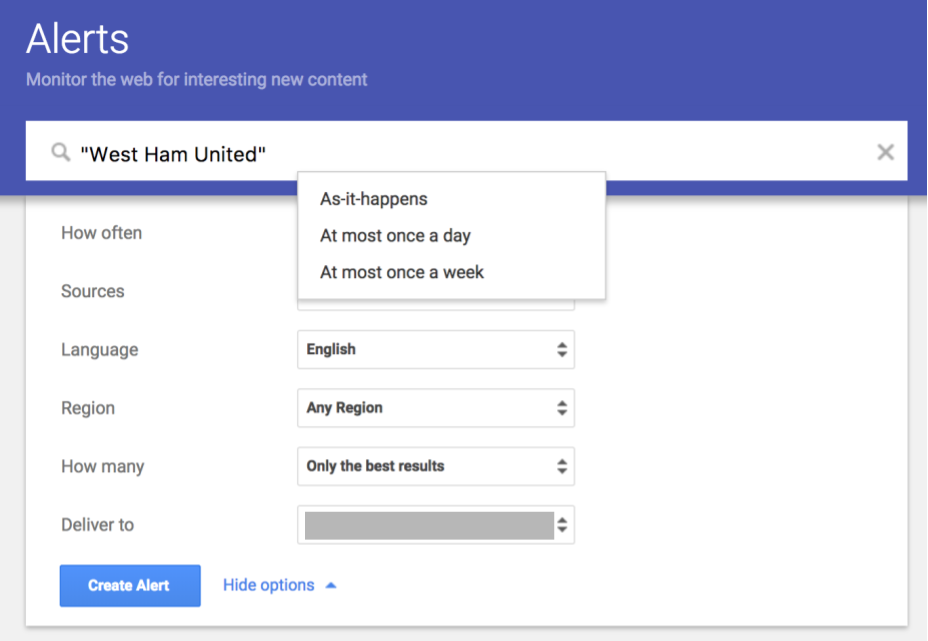
To create a Google Alert for a certain topic, name or event, do the following:

  • Go to the site at www.google.com/alerts
  • Type your search term or phrase in the search box just like you are making a normal Google search.
  • Note: Be sure to put quotes around your search phrase as usual if you want to make sure those words appear in that specific order, such as "West Ham United".
  • Click the "Show options" link if you want to tweak how often you get updates and which sources to search.
  • You will see a preview below showing you representative results.
  • When done, click "Create Alert".     You can edit/remove alerts at any time.